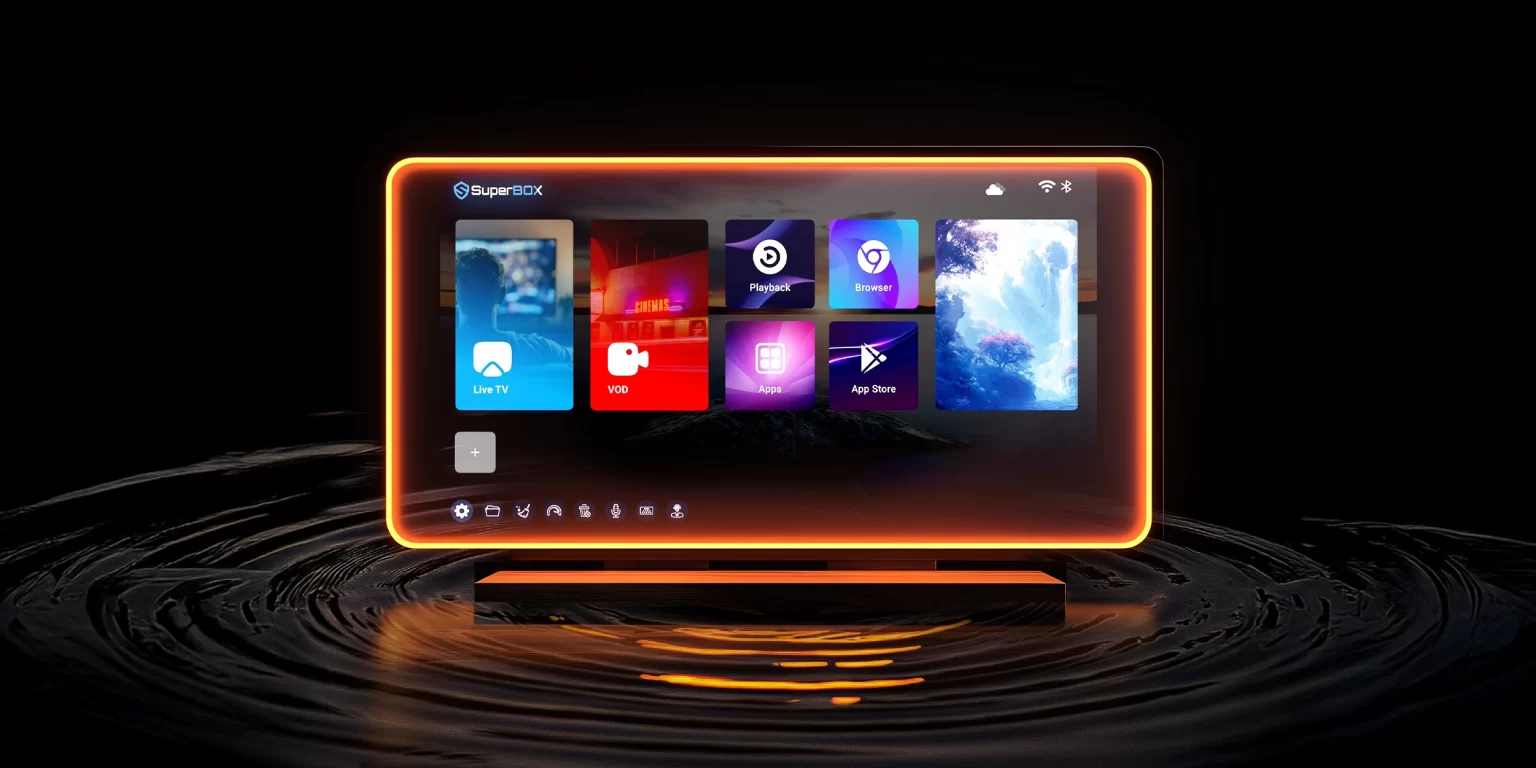
How to Set Up SuperBox: Complete First-Time Setup Guide

How to Set Up SuperBox

If you’re wondering how to set up SuperBox for the first time, the process is simple when you follow the right steps. This guide covers how to connect your SuperBox to your TV, get it online, pair the remote, and complete the initial setup.

The steps apply to common models such as the S7 Pro, S6 Pro, S6 Max, and S6 Ultra, with only minor differences between devices. Follow the guide below to get your SuperBox ready to use.

Before You Start: What You Need

Before setting up your SuperBox, make sure you have everything needed for the initial connection:

  • Your SuperBox device
  • The included power adapter
  • An HDMI cable
  • The SuperBox remote control
  • A TV or monitor with an available HDMI port
  • An internet connection via Wi-Fi or Ethernet
  • Your Wi-Fi password if you plan to connect wirelessly

Once these are ready, you can begin the SuperBox setup process and connect the device to your TV.

How to Set Up Your SuperBox Step by Step

Follow these steps in order to complete your SuperBox setup for the first time. The process is similar across most current SuperBox models, although some menu names or remote functions may vary slightly.

Step 1: Connect the SuperBox to Your TV

Start by connecting one end of the HDMI cable to the HDMI port on your SuperBox and the other end to an available HDMI port on your TV. Then, connect the power adapter to the SuperBox and plug it into a power outlet.

Turn on your TV and SuperBox. Make a note of which HDMI port you used, such as HDMI 1 or HDMI 2, because you will need to select the same input on your TV.

Connect the SuperBox to Your TV

Step 2: Select the Correct HDMI Input

Use your TV remote to open the Source or Input menu, then select the HDMI port connected to your SuperBox.

If the SuperBox screen does not appear, check that the device has power, the HDMI cable is securely connected, and the TV is set to the correct HDMI input.

Step 3: Follow the Initial On-Screen Setup

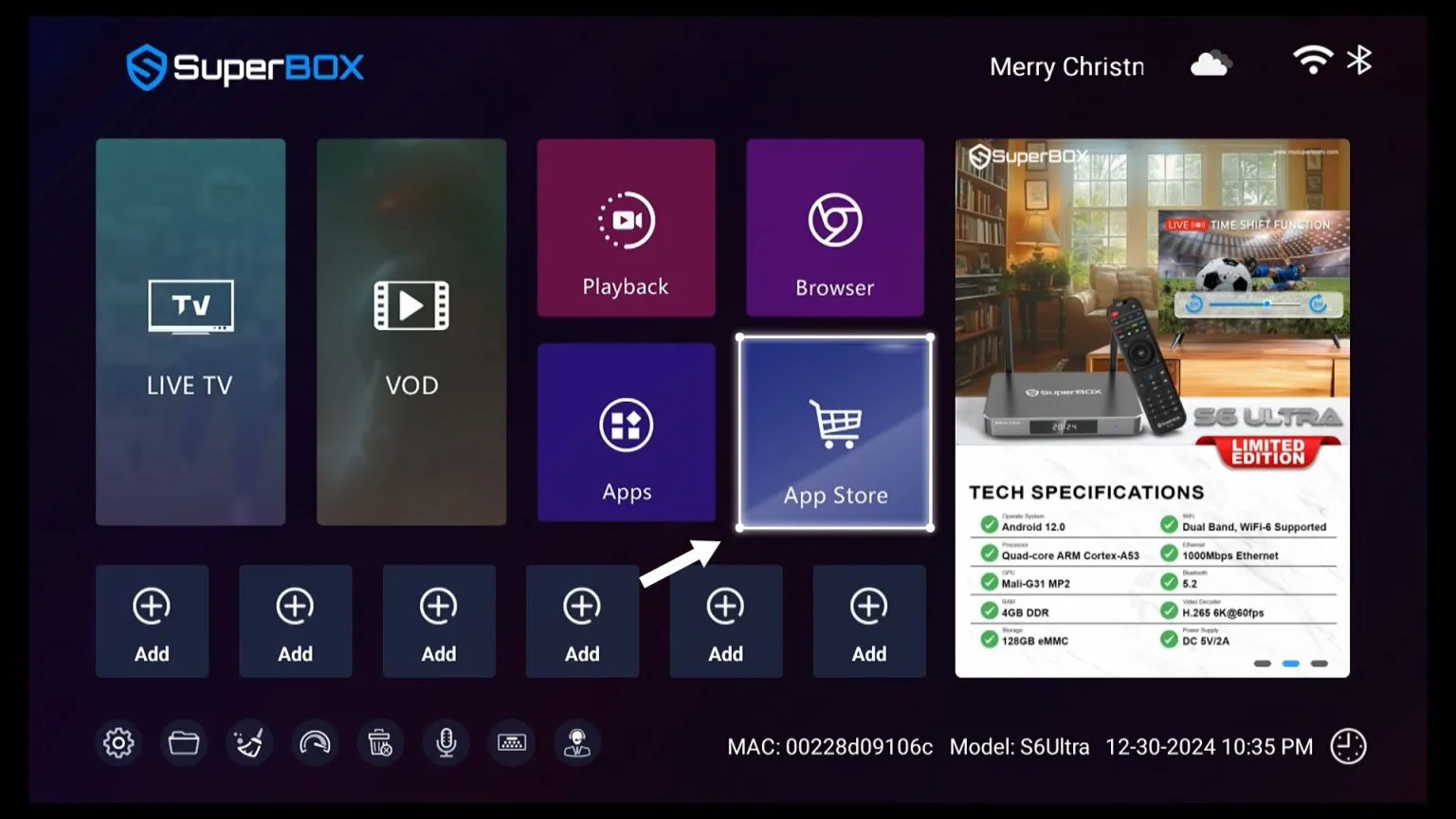
Once the SuperBox interface appears, follow the prompts shown on the screen. Depending on your model and software version, you may be asked to select a language, adjust the display, or confirm other basic settings.

The exact setup screens can vary slightly between models such as the S6 Pro, S6 Max, S6 Ultra, and S7 Pro, but the overall process is generally the same.

Step 4: Connect Your SuperBox to the Internet

An internet connection is required for most online features and apps. You can connect your SuperBox using either Wi-Fi or an Ethernet cable.

Connect with Wi-Fi

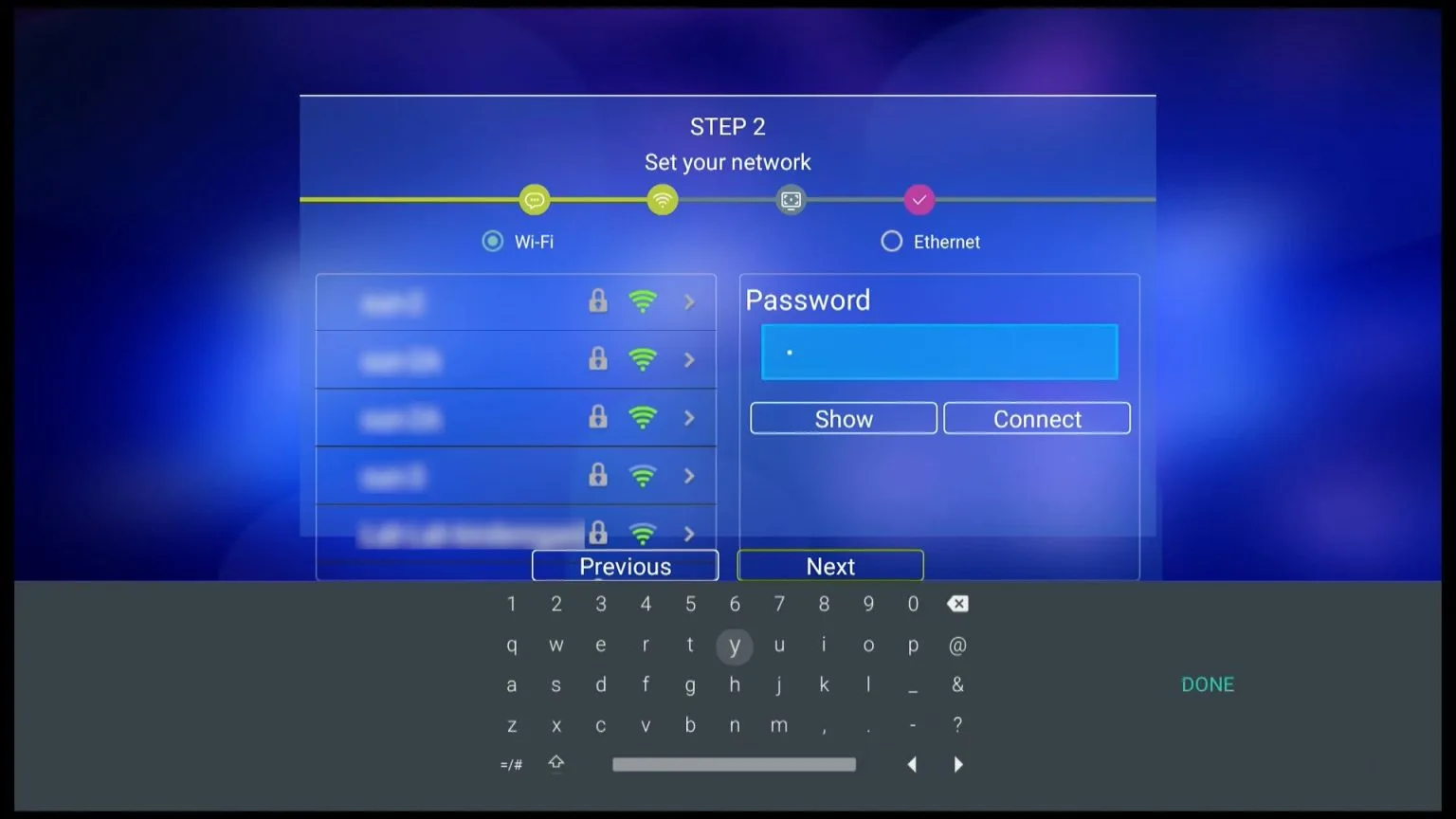
Open the network settings, turn on Wi-Fi, and select your home network from the available options. Enter your Wi-Fi password and wait for the device to confirm the connection.

If the connection fails, double-check the password and make sure your SuperBox is within a reliable range of your router.

Connect with Wi-Fi

Connect with Ethernet

If your router is close to the TV, you can connect an Ethernet cable directly from the router to the SuperBox. A wired connection can be useful when Wi-Fi is weak or unstable.

In most cases, the SuperBox should detect the Ethernet connection automatically.

Step 5: Set Up and Pair the Remote

Use the SuperBox remote to navigate the setup screens. If your remote supports Bluetooth or voice control, you may need to pair it with the device before using those features.

Follow the pairing instructions shown on the screen. The exact button combination may differ depending on the SuperBox model and remote version, so use the on-screen prompt provided by your device whenever available.

Connect with Bluetooth

Step 6: Confirm Your SuperBox Setup Is Complete

Before finishing, make sure the main functions are working correctly. Check that:

  • The picture displays correctly on your TV.
  • Your SuperBox is connected to the internet.
  • The remote responds properly.
  • You can access the Home screen and open apps.

If all of these are working, your SuperBox setup is complete and the device is ready to use.

What to Do After Setting Up Your SuperBox

Once your SuperBox setup is complete, take a few minutes to check for updates and get familiar with the main controls. This helps ensure the device is ready for regular use.

Check for System and App Updates

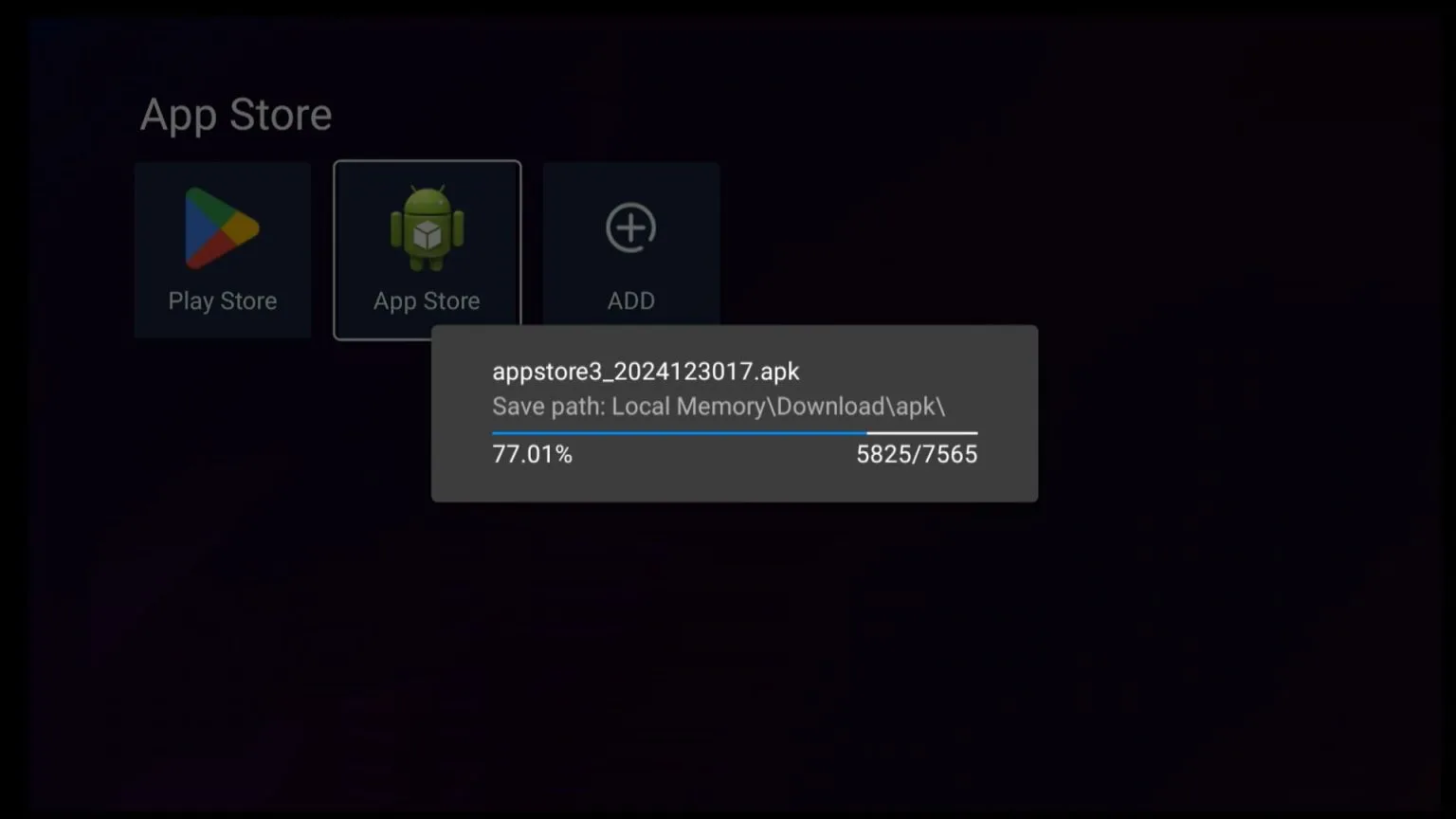
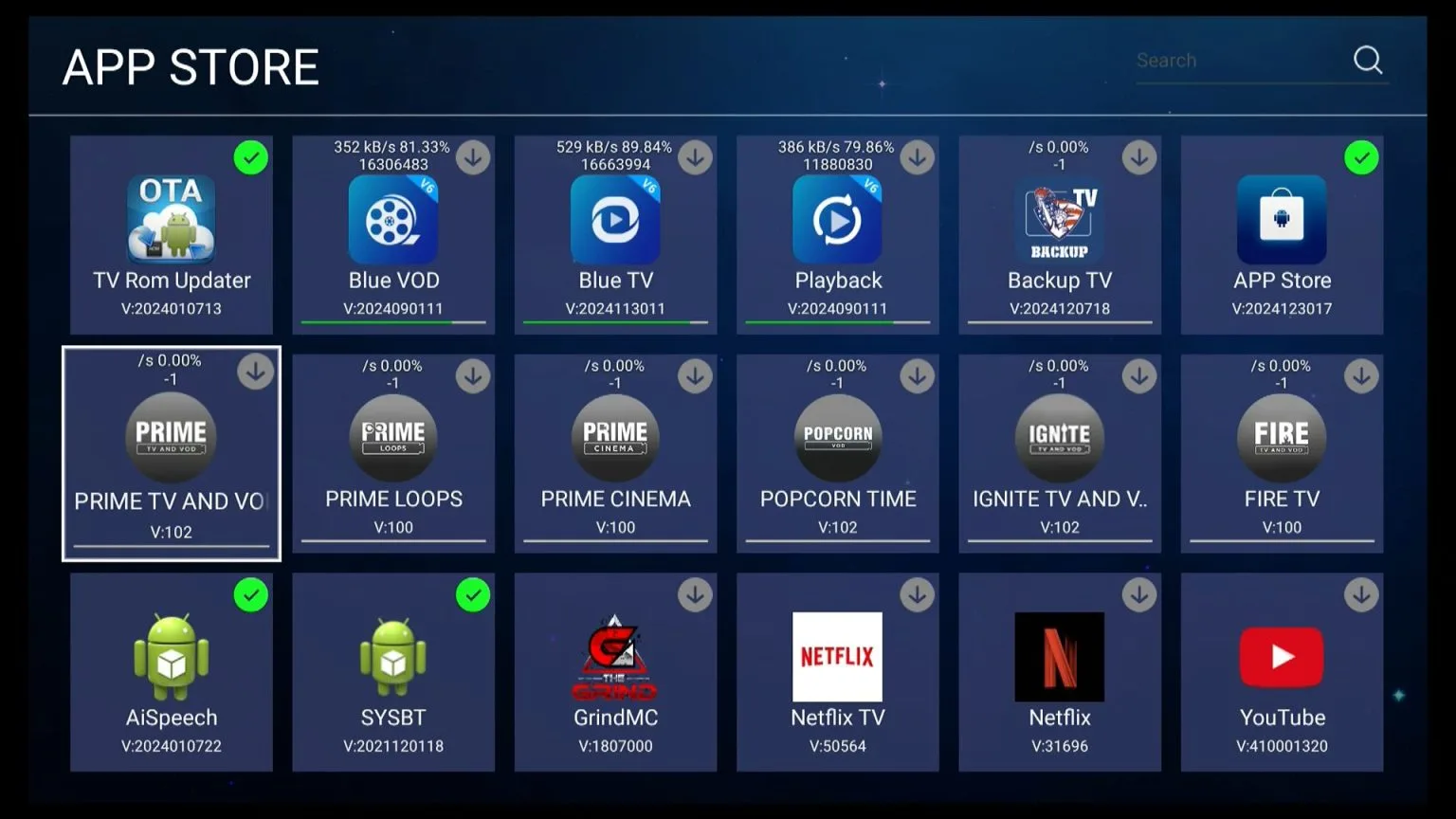
Open the Settings menu and check whether a system update is available. You should also review your installed apps and update them when newer versions are offered.

Keeping the software up to date can improve performance, compatibility, and overall stability.

Get Familiar With the Home Screen and Remote

Spend a moment exploring the Home screen, app menu, and Settings area. Make sure you know how to return to the Home screen, open apps, adjust basic settings, and navigate with the SuperBox remote.

Try Voice Control If Your Remote Supports It

If your remote supports voice control, test the feature after pairing the remote. Voice functions can make it easier to search, open apps, or navigate supported features without typing.

Once these basic checks are complete, your SuperBox is ready for everyday use.

Troubleshooting Common SuperBox Setup Problems

If your SuperBox does not work as expected during setup, the issue is often related to the HDMI connection, internet connection, remote pairing, or display settings. Try the fixes below before restarting the entire setup process.

TV Shows “No Signal”

If your TV displays a “No Signal” message, first confirm that the SuperBox is powered on and the HDMI cable is firmly connected at both ends.

  • Make sure the TV is set to the correct HDMI input.
  • Try reconnecting the HDMI cable.
  • Test another HDMI port on the TV if available.
  • Restart the SuperBox and TV, then check the input again.

SuperBox Won’t Connect to Wi-Fi

If your SuperBox cannot connect to Wi-Fi, verify that you selected the correct network and entered the password correctly.

  • Move the SuperBox closer to the router if the signal is weak.
  • Restart your router and try connecting again.
  • Forget the Wi-Fi network and reconnect if that option is available.
  • Use an Ethernet cable temporarily to check whether the issue is limited to Wi-Fi.

Remote Won’t Pair or Respond

If the remote is not responding, check the batteries first and make sure there are no obvious obstructions between the remote and the device.

For Bluetooth or voice remotes, follow the pairing instructions displayed on your SuperBox screen. Pairing steps can vary by model and remote version, so use the on-screen instructions when available.

SuperBox Is Stuck During Setup

If the device freezes or stops responding during the initial setup, restart the SuperBox and repeat the last step.

If the issue happens while connecting to the internet, try switching between Wi-Fi and Ethernet. If it happens during an on-screen setup step, wait briefly before restarting to make sure the device is not still processing a change.

A factory reset should generally be treated as a last resort because it removes existing settings and requires you to set up the device again.

Picture Doesn’t Fit the TV Screen

If part of the interface is cut off or the picture does not fit the screen correctly, check the display or screen adjustment settings on your SuperBox and TV.

Also review your TV’s picture size or aspect ratio settings. Options such as 16:9, Screen Fit, or Just Scan may help, depending on the TV model.

If none of these fixes solve the problem, note where the setup fails and any message shown on the screen. This information can make it easier to identify the cause or get technical support.

SuperBox Setup FAQ

Is SuperBox setup the same for S6 Pro, S6 Max, S6 Ultra, and S7 Pro?

The basic SuperBox setup process is generally similar across these models: connect the device to your TV, select the correct HDMI input, connect to the internet, configure the remote, and complete the on-screen setup. Some menu names, screen layouts, or remote functions may vary depending on the model and software version.

How long does it take to set up a SuperBox?

For most users, the initial setup should only take a few minutes if the TV connection, internet connection, and remote are ready. It may take longer if you need to troubleshoot Wi-Fi, pair the remote, or install available updates.

Does SuperBox need Wi-Fi?

SuperBox needs an internet connection for most online features and apps, but Wi-Fi is not the only option. You can also connect the device directly to your router with an Ethernet cable.

Does SuperBox work with any TV?

SuperBox is designed to connect through HDMI, so your TV or display should have an available HDMI port. You will also need to select the matching HDMI input on the TV after connecting the device.

Can I move my SuperBox to another TV after setup?

Yes. You can disconnect the SuperBox and connect it to another compatible TV using HDMI. Depending on the new TV and network environment, you may need to adjust display settings or reconnect to Wi-Fi.

Need Help Setting Up Your SuperBox?

If you have followed the setup steps and your SuperBox still is not working correctly, note the model you are using, the step where the problem occurs, and any error message shown on the screen.

Having these details ready will make it easier for technical support to identify the issue and recommend the appropriate next steps. Before requesting assistance, it is also worth checking the HDMI connection, internet connection, power supply, and remote one more time, as these are common causes of first-time setup problems.

Leave a Comment

Your email address will not be published. Required fields are marked *

Shopping Cart
Scroll to Top